


With the new Custom CSS on a block and post/page level, I was wondering if I would know where to look if something needs to be changed that was modified by a Custom CSS setting. Turns out there are 14 different ways to skin WordPress. I am a fan of keeping one source of truth, but it might not always be possible to keep it in theme.json. So I also wanted to figure out what decisions making process goes into selecting a method in the first place.
Below is a comprehensive reference for users, site builders, designers and developers covering all methods from no-code to full theme development.
These methods only apply to Block themes, though. Classic theme methods (like the Customizer’s Additional CSS panel etc.) are excluded.
Table of contents
The specificity cascade
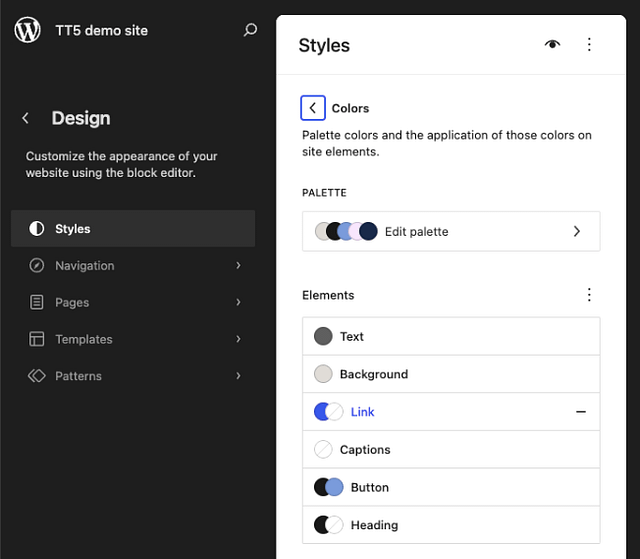
Before diving in, it helps to understand WordPress’s style hierarchy for block themes. Styles resolve in this order, with later layers overriding earlier ones on four levels.
- Default mostly the styling and layouts of WordPress Core.
- Block-level styling can be altered with plugins and overwrites the Default styling.
- Theme-level styling is the whole suite of design tools controlled by the active Theme. It overwrites Default and block-level styles and layouts for instance (e.g. template and template parts).
- User-level styling uses the Design tools within the Site Editor to modify styles and layouts. These changes are stored in the database and overwrite the theme-level styling.
Within each layer, more specific targets (per block, per element) override more general ones. This cascade is central to how all the methods below interact.
1. theme.json — structured style properties
Who: Theme developers, child theme authors
Where: theme.json (root of your theme) → styles section
This is the recommended first choice for styling in block themes. Rather than writing raw CSS, you define styles as structured JSON properties — colors, typography, spacing, borders, shadows, and more — at the global, element, or per-block level.
You can use hardcoded values directly in styles, and they work just fine:
{
  "version": 3,
  "styles": {
    "color": {
      "background": "#ffffff",
      "text": "#333333"
    },
    "elements": {
      "link": {
        "color": { "text": "#0073aa" }
      }
    },
    "blocks": {
      "core/button": {
        "color": { "background": "#0073aa" }
      }
    }
  }
}As your theme grows, hardcoded values become harder to manage. If you decide to change your primary color, you’d need to find and update every instance of #0073aa across styles. A more maintainable approach is to define your values as presets in the settings part of theme.json and then reference them in styles using the var:preset|| syntax. WordPress converts these presets into CSS custom properties (e.g., --wp--preset--color--primary), keeping everything connected:
{
  "version": 3,
  "settings": {
    "color": {
      "palette": [
        { "slug": "primary", "color": "#0073aa", "name": "Primary" },
        { "slug": "base", "color": "#ffffff", "name": "Base" },
        { "slug": "contrast", "color": "#333333", "name": "Contrast" }
      ]
    },
    "typography": {
      "fontSizes": [
        { "slug": "medium", "size": "18px", "name": "Medium" }
      ]
    }
  },
  "styles": {
    "color": {
      "background": "var:preset|color|base",
      "text": "var:preset|color|contrast"
    },
    "typography": {
      "fontSize": "var:preset|font-size|medium",
      "lineHeight": "1.6"
    },
    "elements": {
      "link": {
        "color": { "text": "var:preset|color|primary" }
      },
      "heading": {
        "typography": { "fontWeight": "700" }
      }
    },
    "blocks": {
      "core/button": {
        "border": { "radius": "4px" },
        "color": { "background": "var:preset|color|primary" }
      },
      "core/quote": {
        "typography": { "fontStyle": "italic" }
      }
    }
  }
}This token-based approach pays off in a few ways. When a user changes “Primary” in the Global Styles UI, every element referencing that token updates automatically. It keeps your theme internally consistent — no risk of one button being #0073aa while another drifted to #0074ab. And it makes global style variations far simpler to create: a dark mode variation only needs to redefine the palette, not hunt down every color reference in styles. Either approach is valid, but tokens tend to save time as a theme matures.
Advantages:
- Automatic integration with the Global Styles UI: Users can view and override your styles in the Site Editor without writing CSS.
- WordPress manages specificity for you: the “base → theme → user” cascade works correctly.
- Generates CSS custom properties automatically (e.g.
--wp--preset--color--primary). - Visual parity between editor and front end.
- Machine-readable: other tools and plugins can consume and extend these styles.
- Reduces the amount of CSS enqueued overall.
Limitations:
- Can only express what theme.json’s schema supports (growing with each release, but not yet comprehensive).
- Pseudo-classes like
:hover,:focus,:active, and:visitedare supported for elements such as links and buttons (e.g.,"elements": { "link": { ":hover": { "color": { "text": "var:preset|color|contrast" } } } }), but pseudo-elements like::beforeand::after, media queries, and more complex selectors are not available in the structured properties — use thecssproperty (#2) or block stylesheets (#3) for those.
Documentation
- Global Settings and Styles (theme.json)
- Mastering theme.json: You might not need CSS
- Using Presets
- Styles Reference
2. theme.json — The css Property
Who: Theme developers
Where: theme.json → styles.css (global) or styles.blocks.[blockname].css (per-block)
When theme.json’s structured properties aren’t enough, you can drop to raw CSS strings within theme.json itself. Available since WordPress 6.2.
Global custom CSS
{
  "version": 3,
  "styles": {
    "css": ".my-custom-class { opacity: 0.8; } body { scroll-behavior: smooth; }"
  }
}Per-block custom CSS
{
  "version": 3,
    "styles": {
       "blocks": {
          "core/image": {
              "css": "& img { border-radius: 8px; transition: transform 0.3s; } &:hover img { transform: scale(1.02); }"
              },
          "core/post-title": {
              "css": "letter-spacing: 1px;"
             },
         "core/paragraph": {
              "css": "&.has-background { padding: .5rem .8rem; }"
           }
        }
    }
}WordPress auto-generates the selector for per-block CSS—you don’t need to know the block’s class name. The & selector is supported for targeting nested elements and pseudo-selectors (:before, :after, :hover, :not(), etc.).
Advantages:
- Integrates with the Styles interface in the Site Editor — users can see and modify your per-block CSS under Styles → Blocks → [Block] → Advanced → Additional CSS.
- WordPress handles the selector, so you avoid specificity conflicts.
- CSS from elements and variations is also supported (from WordPress 6.6).
- Provides a bridge between structured theme.json properties and full CSS freedom.
Limitations:
- JSON doesn’t support line breaks, so everything must be on one line — cumbersome for large blocks of CSS.
- No syntax highlighting in JSON files.
- Best for small, targeted additions — for anything extensive, use block stylesheets instead.
Documentation
3. Custom CSS Properties (Variables) via theme.json Settings
Who: Theme developers
Where: theme.json → settings.custom
Create your own CSS custom properties that can be used anywhere in your CSS—in stylesheets, block stylesheets, or even within the css property.
{
  "version": 3,
  "settings": {
    "custom": {
      "contentMaxWidth": "800px",
      "spacing": {
        "gutter": "2rem"
      },
      "transition": "all 0.3s ease"
    }
  }
}This generates:
body {
  --wp--custom--content-max-width: 800px;
  --wp--custom--spacing--gutter: 2rem;
  --wp--custom--transition: all 0.3s ease;
}Advantages:
- Centralized design tokens accessible from any CSS source.
- Automatic generation of CSS custom properties following WordPress naming conventions.
- Changes propagate everywhere the variable is used.
Limitations:
- Only generates the variables — you still need to reference them in your CSS.
- Not directly editable by users in the Site Editor UI (unlike presets for colors or font sizes).
Documentation
4. Child Theme’s theme.json
Who: Developers customizing a parent theme
Where: theme.json in the child theme root
Override or extend the parent theme’s theme.json with a child theme. WordPress merges both files automatically.
Advantages:
- All changes survive parent theme updates.
- Full access to every theme.json capability — structured properties, css property, presets, and settings.
- Combined with block stylesheets and style.css, it provides a complete override system.
Limitations:
- Requires maintaining a child theme.
- Merging behavior can be tricky: child values override parent values at the same path but won’t remove parent values at other paths.
Documentation
- Theme Handbook: Child Themes
5. Global Styles UI
Who: Site owners, content editors (no code required)
Where: Appearance → Editor → Styles
The visual interface for customizing your site’s appearance. Users can adjust typography, colors, spacing, and layout for the entire site, individual elements, or specific block types — all without writing any code.


The Style Book helps you keep the overall context for your styles and you and double-check on how blocks behave when Styles change.


Advantages:
- No code required — fully visual.
- Highest specificity: user styles override theme defaults.
- Changes are stored in the database (
wp_global_stylespost type), separate from theme files, so they survive theme updates. - Supports global style variations — users can switch between whole-site style presets.
Limitations:
- Limited to what the UI controls expose (which grows with each WordPress release).
- For anything the UI can’t handle, users fall back to the Additional CSS options below.
6. Additional CSS
Who: Site owners with CSS knowledge
Where: Appearance → Editor → Styles → three-dot menu (⋮) → Additional CSS
This is the block theme replacement for the classic Customizer’s Additional CSS panel. A free-form CSS editor for site-wide custom styles.
Advantages:
- Free-form CSS handles any valid CSS.
- Stored in the database as part of Global Styles (not in theme files), so it’s theme-specific but survives code deployments.
- Preview changes before saving.
- Revision history (last 25 versions).
- Higher specificity than theme styles.
Limitations:
- Not scoped to blocks — loads globally.
- No syntax highlighting or code formatting.
- Intended as a last resort for styles that can’t be achieved through theme.json or the visual Styles interface.
7. Per-Block Additional CSS
Who: Site owners with CSS knowledge
Where: Appearance → Editor → Styles → Blocks → select a block → scroll to Advanced → Additional CSS
Target CSS to a specific block type site-wide. WordPress auto-generates the selector — you just write the CSS properties.
/* Example: added to Styles → Blocks → Quote → Additional CSS */
font-style: italic;
border-left: 4px solid currentColor;
padding-left: 1.5em;The & selector works here for nested elements and pseudo-selectors.
Advantages:
- Scoped to a specific block type — only loads when that block is present on a page.
- No need to know CSS selectors — WordPress handles them.
- User-level styles (highest priority in the cascade).
Limitations:
- Media queries may not work reliably (as of 2025). Use CSS functions like
clamp(),min(), andmax()for responsive behavior, or put responsive styles in theme-level CSS. - Small text area with no code formatting.
8. Additional CSS Class(es) on individual block instances
Who: Content editors with CSS knowledge
Where: Select any block in the editor → Settings sidebar → Advanced → Additional CSS Class(es)
Add custom class names to a specific block instance. The CSS itself must be defined elsewhere (style.css, block stylesheets, Additional CSS, etc.). As a user the global Additional CSS is probably the most practical place.
Advantages:
- Precision targeting of individual block instances rather than all blocks of a type.
- Perfect for one-off styling: a highlighted paragraph, a special call to action, etc.
- Multiple classes can be added, separated by spaces.
- Works with any CSS source — just define the class styles somewhere.
Limitations:
- Only adds class names — you still need to write the CSS elsewhere.
- Per-instance, which means it doesn’t scale well for repeated patterns (use block style variations for those).
9. Global Style Variations (Theme-Level Style Presets)
Who: Theme developers
Where: JSON files in the theme’s /styles directory (at the top level, not in a /blocks subfolder)
Provide entire alternative site-wide style schemes. Each variation is a JSON partial that can override settings and styles from the main theme.json.
Since WordPress 6.6, style variations are further classified into three subtypes based on their content.
A variation file that defines only settings.color or styles.color is automatically recognized as a color variation, appearing under Styles → Colors → Palette.
One that defines only settings.typography or styles.typography becomes a typography variation, appearing under Styles → Typography → Presets.
Files that touch other properties remain full theme style variations.
Color and typography variations can be mixed and matched with each other and with theme variations.
To keep the /styles folder organized, it’s recommended to use subfolders (e.g., /styles/color, /styles/typography, /styles/global).
// /styles/dark-mode.json
{
  "$schema": "https://schemas.wp.org/trunk/theme.json",
  "version": 3,
  "title": "Dark Mode",
  "settings": {
    "color": {
      "palette": [
        { "slug": "base", "color": "#1a1a2e", "name": "Base" },
        { "slug": "contrast", "color": "#e0e0e0", "name": "Contrast" }
      ]
    }
  },
  "styles": {
    "color": {
      "background": "#1a1a2e",
      "text": "#e0e0e0"
    }
  }
}Advantages:
- Users can switch between entire style schemes (light/dark, color themes, typographic variations) from the Styles panel.
- Makes one theme feel like many — more versatile without requiring separate themes.
- Fully declarative (no PHP).
Limitations:
- Only affects settings and styles — not templates or patterns.
Documentation
10. Block Style Variations (JSON, PHP, and JavaScript)
Who: Theme developers, plugin developers
Where: JSON files in /styles, PHP via register_block_style(), or JavaScript via wp.blocks.registerBlockStyle()
Block style variations give content creators pre-made styling options in the Styles panel — like “Rounded” or “Outline” on core blocks. You can register them via JSON files in /styles (WordPress 6.6+, no PHP needed), PHP with register_block_style(), or JavaScript. The JSON-based methods integrate with Global Styles so users can customize them in the Site Editor; inline_style, style_handle, and JavaScript methods do not.
For a thorough walkthrough of all six registration methods — with code examples, a companion theme and plugin on GitHub, and a comparison table showing which methods support Global Styles — see the comprehensive guide Mastering Custom Block Styles in WordPress: 6 Methods for Theme and Plugin Developers.
11. Section Styles
Who: Theme developers
Where: JSON files in /styles directory, targeting mostly group or column blocks.
Section styles are more of a convention than a separate feature. They are essentially Block Style Variations. The difference is naming the variation slug: style-1, style-2, etc. so that they can be reused across themes.
Since WordPress 6.6, block style variations can style nested inner blocks and elements, enabling “section styling” — where a Group block’s style variation changes the appearance of all blocks within it.
The Twenty Twenty Five theme showcases this convention quite nicely.
Advantages:
- Apply coordinated styles to entire sections (background, text color, button colors, link colors) with a single click.
- Users select the section style in the block’s Styles panel.
- Powerful for creating consistent design sections (hero areas, dark sections, testimonials).
Limitations:
- Easy to overwhelm users with too many section style options — restraint is needed.
- Requires careful design token architecture (using base/contrast/primary/secondary color naming).
Documentation
- Section Styles (WordPress 6.6)
12. Block Stylesheets via wp_enqueue_block_style()
Who: Theme developers
Where: Separate .css files in your theme (e.g., /assets/blocks/core-image.css), registered in functions.php
This is the recommended approach when you have more CSS than what’s comfortable in theme.json’s css property.
/* /assets/blocks/core-image.css */
.wp-block-image img {
    padding: 1rem;
    background: linear-gradient(-60deg, #ff5858, #f09819);
}// functions.php
add_action( 'init', function() {
wp_enqueue_block_style( 'core/image', array(
'handle' => 'my-theme-image-styles',
'src' => get_theme_file_uri( 'assets/blocks/core-image.css' ),
'path' => get_theme_file_path( 'assets/blocks/core-image.css' ),
) );
});Advantages:
- Performance: CSS only loads when the block is actually present on the page. WordPress inlines it in the
<head>section - Full CSS syntax with syntax highlighting, multi-line formatting, and preprocessor support (Sass/SCSS).
- Clean code organization — one file per block.
- Works for any CSS, including media queries, animations, complex selectors, and pseudo-elements.
- Applies in both the editor and front end.
Limitations:
- Requires PHP registration in functions.php.
- These styles aren’t exposed in the Global Styles UI for user editing.
Documentation
13. Enqueuing Stylesheets via wp_enqueue_style() in PHP
Who: Theme and plugin developers
Where: functions.php using the wp_enqueue_scripts (front end) and enqueue_block_editor_assets (editor) hooks
The traditional WordPress approach still works and is useful for loading third-party CSS libraries, fonts, or complex stylesheets.
add_action( 'wp_enqueue_scripts', function() {
    wp_enqueue_style(
        'my-theme-custom',
        get_theme_file_uri( 'assets/css/custom.css' ),
        array(),
        '1.0.0'
    );
});

// For editor-only styles:
add_action( 'enqueue_block_editor_assets', function() {
    wp_enqueue_style(
        'my-theme-editor',
        get_theme_file_uri( 'assets/css/editor.css' ),
        array(),
        '1.0.0'
    );
});Advantages:
- Full control over loading conditions (you can conditionally enqueue based on page, template, user role, etc.).
- Familiar to all WordPress developers.
- Can load external stylesheets, Google Fonts, icon libraries, etc.
- Supports dependencies, versioning, and media attributes.
- Can target editor-only or front-end-only.
Limitations:
- Loads on every page (unless you add conditional logic).
- No integration with the Global Styles UI.
- Doesn’t benefit from the block stylesheet system’s per-block inlining.
Documentation
- Enqueueing assets in the Editor
- Editor Stylesheets
- do_action( ‘wp_enqueue_scripts’ )
- wp_enqueue_style( string $handle, string $src, string[] $deps = array(), string|bool|null $ver = false, string $media )
What’s the difference between wp_enqueue_style and add_editor_style?
wp_enqueue_style() is the general-purpose function for loading stylesheets — you choose where it loads by picking your hook (wp_enqueue_scripts for the frontend, enqueue_block_editor_assets for the editor). When you use it on the editor hook, the stylesheet loads into the entire editor page, including the UI chrome (sidebar, toolbar, etc.).
add_editor_style() is specifically designed for visual parity between the editor and the frontend. WordPress takes the stylesheet you pass it and automatically scopes every selector to .editor-styles-wrapper, so your styles only affect the content canvas and don’t bleed into the editor UI. In block themes it’s typically called from an after_setup_theme hook — this is how themes get their style.css to apply inside the editor.
The practical upshot: if you want your theme’s frontend styles to look the same in the editor, use add_editor_style(). If you need to style the editor UI itself (like a custom sidebar panel) or need fine-grained control over loading conditions, dependencies, and versioning, use wp_enqueue_style() on the appropriate hook.
14. The Theme’s style.css
Who: Theme developers
Where: style.css in the theme root
The traditional main stylesheet still works in block themes, but its role has changed significantly. It now primarily holds theme metadata (name, version, description) and is loaded globally.
In block themes it’s typically called from an after_setup_theme hook — this is how themes get their style.css to apply inside the editor.
add_action( 'after_setup_theme', 'theme_slug_setup' );

function theme_slug_setup() {
	add_editor_style( get_stylesheet_uri() );
}Advantages:
- Familiar workflow for developers with classic theme experience.
- Good for truly global CSS that should always be available (e.g., custom utility classes, print styles, CSS resets beyond what theme.json handles).
- Full CSS syntax, syntax highlighting, and preprocessor support.
Limitations:
- Needs to be enqueued like any other stylesheet file (see #13)
- Loads on every page, even if the styles aren’t needed — no per-block performance optimization.
- Not integrated with the Global Styles UI.
- Not the recommended approach for block-specific styling; use block stylesheets instead (#12)
Documentation
Summary Table
| # | Method | Who | Scope | Loads When | Editable by Users |
|---|---|---|---|---|---|
| 1 | theme.json structured properties | Developer | Global / block / element | Always (inlined) | Yes, via Global Styles UI |
| 2 | theme.json css property |
Developer | Global or per-block | Always (inlined) | Yes, per-block CSS is visible in Styles |
| 3 | Custom CSS properties (settings.custom) |
Developer | Global (variables) | Always | No (indirectly via tokens) |
| 4 | Child theme.json | Developer | Inherits parent | Same as parent | Same as parent |
| 5 | Global Styles UI (visual) | User | Global / block / element | Always (inlined) | It is the user editing |
| 6 | Additional CSS (site-wide) | User | Global | Every page | Yes |
| 7 | Per-block Additional CSS | User | Per-block type | When block present | Yes |
| 8 | Additional CSS Class(es) | User | Single block instance | When that block is present | N/A (class only) |
| 9 | Global style variations | Developer | Whole site preset | When active | Users switch presets |
| 10 | Block style variations (JSON, PHP, JS) | Developer | Per-block variation | Only when block + variation is used | JSON/style_data methods: yes; inline_style/JS: no |
| 11 | Section styles | Developer | container blocks | When block + variation is used | Yes, via Styles panel |
| 12 | Block stylesheets (wp_enqueue_block_style) |
Developer | Per-block | Only when block is present | No |
| 13 | wp_enqueue_style() |
Developer | Configurable | Configurable | No |
| 14 | style.css |
Developer | Global | Every page | No |
Decision Guide
Start here: Use theme.json structured properties (#1) for everything they support. This gives you the best integration with the Global Styles system and lets users customize your styles.
Need CSS that theme.json properties can’t express? Use the theme.json css property (#2) for small additions or block stylesheets (#12) for anything substantial.
Want to offer style choices to content editors? Create block style variations (#10) so they appear in the Styles panel.
Site owner making tweaks? Use the Global Styles UI (#5) first, then fall back to Additional CSS (#7 or #7) for anything the visual interface can’t handle.
Need to target one specific block instance? Use Additional CSS Class(es) (#8) and define the class in your preferred CSS source.
Building a child theme? Override the parent via child theme.json (#4) and add block stylesheets as needed.
Need to sync user edits with theme files? Use the Create Block Theme plugin.
How to sync user editor to theme files and maintain version control? Here is a tutorial: Streamlining block theme development with WordPress Playground and GitHub.
Huge Thank you to Justin Tadlock for reviewing the post to make sure it’s all technically accurate.